Merge PDF files in the order you choose
Combine PDFs into one file, put them in the right order, and check the page count before you download.
Accepted input and limits
PDF files up to 50 MB each, up to 20 files at a time. Password-protected files are rejected with a message because their pages cannot be copied. Damaged files that cannot be read are also rejected when you add them, so you find out before merging.
How to use this tool
- Name your files with leading zeros (01, 02 … 10) so they sort correctly in your folder.
- Drop the files onto the box or choose them. Each file shows its page count.
- Use ↑ and ↓ to put the files in the order you want, and ✕ to remove one. The top of the list becomes the first pages.
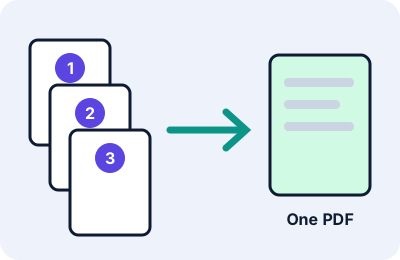
- Press Merge PDFs. The tool copies every page of every file, in order, into a new document.
- Download the result and check it.
Example
Three files with 4, 10 and 2 pages are merged in the order shown. The result has 16 pages, and the first page of the second file is page 5. The tool compares the final page count with the sum of the inputs and reports an error if they differ. Follow the same check yourself by opening the merged file.
How it works
The page content of each source file is copied into a new PDF using the open-source pdf-lib library (version 1.17.1, MIT licence), which is bundled with this website in assets/vendor/pdf-lib/, so no outside service is contacted. Pages keep their own size and orientation.
Limits and troubleshooting
- Document-level features such as bookmarks, form fields, tags and digital signatures may not survive a merge. A signed PDF should be kept as the original.
- If a file is rejected as password-protected, ask the owner for an unprotected copy if you are entitled to one.
- Large files use browser memory. If the tab slows down, merge in smaller groups.
- If the output is too big for an upload form, see the PDF Compressor.
Privacy
Your PDFs are read and combined by your browser. The tool code does not upload them. The website’s server keeps ordinary access logs; see the Privacy Policy.
An example: a job application packet
Imagine a form that wants a single PDF containing a cover letter (1 page), a CV (3 pages), certificates (6 pages) and an ID copy (2 pages). Name the files 01-cover-letter.pdf, 02-cv.pdf, 03-certificates.pdf and 04-id.pdf, add them in that order, and the status line should report 12 pages in total. After merging, the CV’s first page should be page 2 and the certificates should start on page 5.
Using the ordering controls
Each row has buttons to move a file up or down and to remove it. They are real buttons that work with the keyboard: tab to a button and press Enter or Space. After each move, the numbers beside the file names update, and the first row will provide the first pages of the merged file. You can add more files at any time, up to 20, and each can be up to 50 MB.
What the output looks like
- Pages keep their own size and orientation. Mixed sizes are allowed.
- The file size is generally close to the sum of the sources, though it can differ a little.
- The downloaded file is named merged.pdf. Rename it to something meaningful.
- The tool compares the final page count with the sum of the input pages and reports an error if they differ.
Limits
- Bookmarks, form fields, tags and digital signatures may not carry over. If you need them, check the result in a PDF editor.
- Password-protected files are refused with a message naming the file.
- A file that cannot be read is rejected when you add it, so you find out before merging.
- Large collections use a lot of memory. If your browser slows down, merge in smaller groups, then merge the results.
Troubleshooting
| What you see | Likely reason | What to try |
|---|---|---|
| “Password-protected PDFs cannot be merged” | The file is encrypted | Ask the owner for an unprotected copy, if you are entitled to one |
| “Could not be read” | The file is damaged or not really a PDF | Open it in a PDF reader, or re-export it |
| Merge button is disabled | Fewer than two files in the list | Add another PDF |
| Result is too big | The sources are large | Use the PDF Compressor |
For naming tips and a way to verify the order, read how to merge PDF files without changing page order.
Frequently asked questions
Will the page order stay the same?
Yes. Pages appear in the order of the list, and each file’s own page order is kept.
Can I merge a password-protected PDF?
No. The tool tells you which file is protected.
Are my files uploaded?
The tool code does not upload them.
Will bookmarks and forms be kept?
They may not be. Check the result if you rely on them.