Compress images in your browser
Reduce image file size with a quality slider and compare the result against the original before you download.
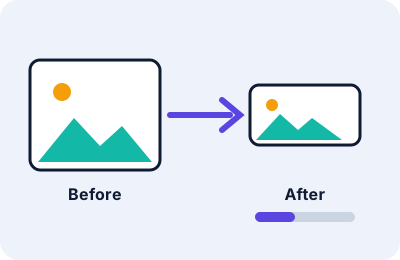
Drop an image here or choose one:
PNG is lossless, so the quality slider has little effect. For a smaller file, choose JPEG or WebP (transparency becomes white in JPEG).
Supported inputs and limits
JPEG, PNG and WebP images up to 25 MB. Very large photos can be slow on older phones because the browser must decode the full image in memory. Animated images are not supported; only a still frame would be processed.
How to use this tool
- Drop an image onto the box or choose it with the file picker.
- Check the original size and dimensions shown beside the preview.
- Move the quality slider. The compressed preview and size update after a moment.
- Pick an output format if you want to switch, for example PNG to WebP.
- Compare the two previews at full size, then press Download.
Examples
Percentage maths. If a 800 KB photo becomes 200 KB, the reduction is (800 − 200) ÷ 800 = 75%. If it becomes 640 KB, the reduction is 20%.
Photo for a form. A phone photo saved as JPEG often shrinks a lot between quality 90 and 75, with little visible change at normal viewing size. Below about 50, blocky artefacts usually appear.
Screenshot. A PNG screenshot with flat colours may compress poorly as JPEG and show fuzzy text. Try WebP, or keep the PNG.
These are illustrations, not guaranteed results. Output size depends on the picture, its dimensions and the format.
How it works
Your browser decodes the image, draws it onto a canvas element, then re-encodes it with the quality value you chose using the browser’s built-in encoder. JPEG and WebP are lossy, so lower quality discards detail. The tool does not resize the image; to fit a size limit you may also need the Image Resizer.
Settings
| Setting | Effect |
|---|---|
| Quality | Lower values make smaller files with more visible loss. Ignored for PNG. |
| Format | WebP is often smaller than JPEG at similar quality but not always. |
Limits and troubleshooting
If the result is larger than the original, the file was probably already well compressed; lower the quality or change format. If WebP fails, your browser does not support WebP encoding. Metadata such as EXIF data is not kept, because the image is redrawn. Photos from some phones may lose their rotation flag in very old browsers.
Privacy
The tool code reads your file with browser APIs and never sends it anywhere. The page itself is served by a web server that keeps ordinary access logs. See the Privacy Policy.
Choosing a quality setting
Quality numbers are not percentages of the original file. They control how aggressively the encoder discards detail. As a rough guide, which varies from image to image, values from 85 to 95 look close to the original but save little space, 70 to 85 suits most photos on web pages and forms, 50 to 70 gives clearly smaller files with some visible softening, and below 50 visible blockiness is common. Preview at full size and stop at the lowest value you are happy with.
Three realistic scenarios
- A phone photo for an online form. Load the JPEG, keep the format, and lower quality in steps until the shown size fits the form’s limit. If it will not fit, resize first with the Image Resizer.
- A screenshot saved as PNG. Try WebP. If the text becomes fuzzy, go back to PNG, which is lossless and is better for sharp lines.
- A product picture for a web page. Convert to WebP or JPEG at quality 75 to 80 and compare. Smaller files make pages load faster, which helps visitors on slow connections.
Reading the numbers on the page
The size of the original file and the new file are both shown, together with a percentage. The percentage is (original − new) ÷ original × 100. If the new file is larger, the tool says “larger” instead of pretending there was a saving. That can happen when a file was already well compressed or when converting a small PNG to a lossless format.
Limits specific to this tool
- Files up to 25 MB are accepted. Very large photos may need a lot of memory on older phones.
- When the format stays PNG, the image is re-saved without loss, so the quality slider has little effect.
- Converting a PNG with transparency to JPEG replaces transparent areas with white.
- Metadata such as camera model and location is not preserved, which also removes location data from the new file.
Troubleshooting
| What you see | Likely reason | What to try |
|---|---|---|
| Result is larger than the original | Original was already well compressed | Lower the quality or choose WebP |
| “Unsupported file” | The file is not JPEG, PNG or WebP | Convert it to one of those first |
| Image could not be read | The file is damaged or has the wrong extension | Open it in an image viewer to check |
| WebP error | Your browser cannot encode WebP | Choose JPEG |
| Text looks fuzzy | Quality too low for sharp edges | Raise quality or keep PNG |
Tips
Always keep the original. Name outputs clearly, for example photo-compressed.jpg. If you need to reach a specific size such as 200 KB, read our guide to compressing images to a target size for a step-by-step approach.
Frequently asked questions
Can I get exactly 100 KB?
Not reliably. The size depends on the image, its dimensions and the format. Adjust quality and, if needed, resize, then check the displayed size.
Does compression reduce quality?
JPEG and WebP compression is lossy, so yes. Preview the result before downloading.
Is my image uploaded?
The tool code does not upload it. Processing happens in your browser.