Convert JPG images into a PDF
Combine photos into one PDF, reorder the pages, choose A4 or Letter, and download it.
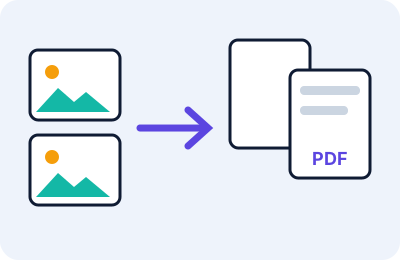
Accepted input and limits
JPG/JPEG images only, up to 25 MB each and up to 40 images per PDF. Very large pictures are scaled down so that their longest side is at most 4,000 pixels, which is more than enough for an A4 page at 300 pixels per inch (about 2480 × 3508 pixels).
How to use this tool
- Drop your JPG files onto the box or choose them with the file picker.
- Check the numbered list. Use the arrow buttons to change the order and the ✕ button to remove an image. Page 1 is the top of the list.
- Choose the page size. A4 is 210 × 297 mm and US Letter is 8.5 × 11 inches. “Same as image” makes each page the size of its picture.
- Choose orientation. “Automatic” makes wide pictures landscape and tall pictures portrait.
- Pick a margin and the image quality, then press Create PDF.
- Download the file and open it to confirm the page order.
Settings and their effects
| Setting | Effect |
|---|---|
| Page size | Sets the paper size. Images are scaled to fit inside it without distortion, so differently shaped pictures leave blank bands. |
| Margin | White space around each image, useful for printing. |
| Image quality | Each image is re-encoded as JPEG at this quality. Lower values make a smaller PDF but add compression artefacts. |
Examples
Landscape and portrait together. With “Automatic”, a 640 × 480 photo becomes a landscape A4 page (842 × 595 points) and a 300 × 500 photo becomes a portrait page (595 × 842 points). These two sizes were checked in a test PDF made with this tool’s code.
Phone scans. Twelve phone photos of a document produce a 12-page PDF. If the result is too large for an upload form, lower the quality or shrink the photos first.
Same as image. Choose this if you want no empty space around each picture.
Output sizes depend on your pictures and are not guaranteed.
How it works
Your browser decodes each image, redraws it onto a canvas, re-encodes it as JPEG, and the page script writes the PDF structure by hand: one page per image, with the JPEG embedded unchanged inside the page. No PDF library is used.
Limits and troubleshooting
The text in a photographed document is part of the picture, so it cannot be searched or copied. If a photo appears sideways, rotate it in a photo app and add it again. Metadata such as camera information is not carried across. Very many large photos can exhaust memory on older phones; create the PDF in smaller batches. Check the output in a PDF reader before sending it.
Privacy
The images are processed in your browser and the tool code does not upload them. The site itself is served by a web server that keeps ordinary access logs; see the Privacy Policy.
How the page layout is calculated
PDF page sizes are measured in points, where 72 points make an inch. A4 is about 595 × 842 points and US Letter is 612 × 792. With a 10 mm margin on A4, the printable area is 190 × 277 mm, because 10 mm is taken from every side. Each picture is scaled to fit inside that area, keeping its proportions, and centred.
Worked examples
- A 4000 × 3000 landscape photo on a portrait A4 page with 10 mm margins. The photo is limited by the 190 mm width, so it is drawn 190 mm wide and 142.5 mm tall (3 ÷ 4 of the width), with empty bands above and below. Choosing “Automatic” orientation would instead make the page landscape and fill it better.
- “Same as image” with a 1600 × 1200 pixel photo and no margin. The page becomes 1200 × 900 points, which is about 16.7 × 12.5 inches, because each pixel is treated as 0.75 point. This suits reading on a screen more than printing.
- Ten photos, all portrait. Choose A4, portrait or automatic, a 10 mm margin, and you get ten uniform pages.
What the quality setting does
Every picture is redrawn and saved again as a JPEG at the quality you choose before it is placed on its page. The default of 90 keeps pictures sharp. Lowering it makes smaller files. Because the pictures are re-encoded, the final PDF may be larger or smaller than the sum of the original files, depending on how they were compressed in the first place, so check the size shown when it is ready.
Limits specific to this tool
- JPG/JPEG images only, up to 25 MB each and up to 40 per PDF.
- Pictures larger than 4,000 pixels on the longest side are reduced to that size.
- Orientation choices are ignored for “Same as image”, because each page already matches its picture.
- The PDF contains pictures only. It has no searchable text.
Troubleshooting
| What you see | Likely reason | What to try |
|---|---|---|
| “Files skipped” message | Wrong file type, over 25 MB, or more than 40 images | Convert or reduce them first |
| A page appears sideways | The photo’s stored rotation was not applied by your browser or viewer | Rotate it in a photo app and add it again |
| The PDF is very large | Many high-resolution photos | Lower the quality or shrink the photos first |
| Pictures leave big blank areas | Photo shape differs from the page shape | Use automatic orientation or “Same as image” |
| Create PDF button disabled | No images added yet, or a PDF is being created | Add at least one image and wait for processing to finish |
For a wider discussion of preparing photos, see how to convert JPG images into a PDF.
Frequently asked questions
Can I reorder the pages?
Yes. Use the arrow buttons beside each image.
Will the PDF text be searchable?
No. Photographed text is an image.
Does the tool upload my photos?
The tool code does not. Processing happens in your browser.
Why is my PDF large?
It contains your images. Lower the quality or shrink the photos first.