How to Compress a PDF for Online Uploads
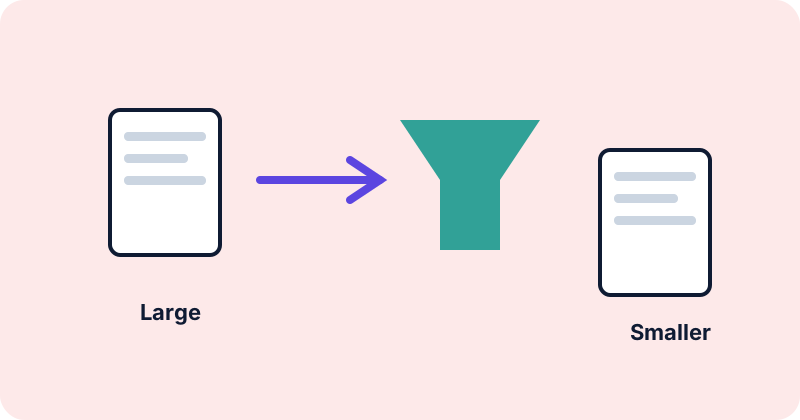
Job portals, government forms and email systems often cap attachments at a few megabytes. When your PDF is bigger than the limit, you need to shrink it without making it unreadable. The right method depends on why the file is large in the first place.
Why PDFs get big
- Images. Scanned pages and photos are usually the main reason. A 10-page scan can be much larger than 100 pages of plain text.
- High scan resolution. Scanning at a very high resolution produces images with more pixels than you need.
- Embedded fonts. Usually small, but they add up with many different fonts.
- Extra data. Unused objects, form data or editing history can remain inside a file.
Methods that work
Rescan or re-export at lower resolution
For text documents, scanning at a moderate resolution is often enough for reading, while photos and fine print need more. Re-exporting from the original document (a word processor, for example) usually gives a far smaller file than scanning a printout.
Use the “reduce size” or “optimise” option in your PDF software
Many PDF editors and print-to-PDF dialogs offer a smaller-file setting that downsamples images and removes unused data. This is where real compression happens, because the images inside the file are re-encoded.
Split the document
If the form allows several uploads, split a large PDF into parts. This does not shrink the content, but it gets each part under the limit.
Compress the pictures before building the PDF
If you are making a PDF from photos, reduce the images first with the Image Compressor, then combine them.
What to expect
A file that is mostly text and already optimised may barely shrink. A scan can shrink a lot, but quality drops with it. Always open the result and check that small print, signatures and stamps are still legible. Compression results vary and cannot be promised.
Browser-only limits
Properly recompressing the images inside a PDF requires decoding and rebuilding the file, which is hard to do reliably in a browser without a dedicated library. For that reason, our PDF Compressor page describes exactly which method it uses and does not claim savings it cannot deliver.
Common mistakes
- Assuming a rename or re-save always reduces size.
- Compressing so hard that text becomes unreadable.
- Compressing a signed document, which can break the signature. Keep the signed original.
- Forgetting that password-protected files may not process.
First, work out what kind of PDF you have
Select some text in the document with your mouse. If you can highlight individual words, the pages contain real text, which is usually small. If the whole page highlights as one block, or nothing highlights, the pages are pictures of text, such as scans or photos, and the file size is dominated by those pictures. This one test tells you which method will help.
Seeing how the size adds up
A scan-based PDF is roughly the number of pages times the size of each page image. Twenty pages at about 1 MB each make a file near 20 MB. If each page image can be brought down to around 250 KB, the same document comes to about 5 MB. That is why reducing image resolution has such a large effect on scanned documents, and so little on a text-only document.
Using the PDF Compressor
The PDF Compressor recompresses JPEG images inside a PDF. A sensible first attempt is quality 60 with the largest image side set to 1600 pixels. Check the report it shows: it lists the original size, the new size and how many images were recompressed or skipped. If it says nothing could be reduced, the PDF probably has no JPEG images of the kind it can handle, and you will need another approach, such as re-exporting from the original document.
Check the result carefully
- Zoom to 200% on small print, tables and numbers.
- Check signatures, stamps and handwriting.
- Make sure every page is present and in order.
- Open the file in a second PDF reader if the destination might use a different one.
When compression is not enough
Some options remain. Split the document into parts if the form allows several files. Send a link to a shared copy instead of an attachment, if that is acceptable to the recipient. Ask the recipient whether a different delivery method is available. Do not remove pages or content that the recipient needs just to meet a size limit.
A note on accessibility and searchability
Scans are pictures, so screen readers and search functions cannot use the text in them. If you are producing a document for wide distribution, exporting from the source document with real text is better for readers, and usually smaller as well.
Conclusion
Find out what makes the file large, reduce image resolution or re-export from the source, then check the result before uploading.
Try the tools
Frequently asked questions
Why is my scanned PDF so large?
Each page is an image, and high resolution means more data.
Will compression affect text quality?
Real text stays sharp, but scanned text is an image and can blur if compressed too far.
Can I compress a password-protected PDF?
Usually you need to remove the password first, if you are allowed to.
Is there a standard size limit?
No. Each website sets its own, so read the form’s instructions.