How to Convert Uppercase Text to Lowercase
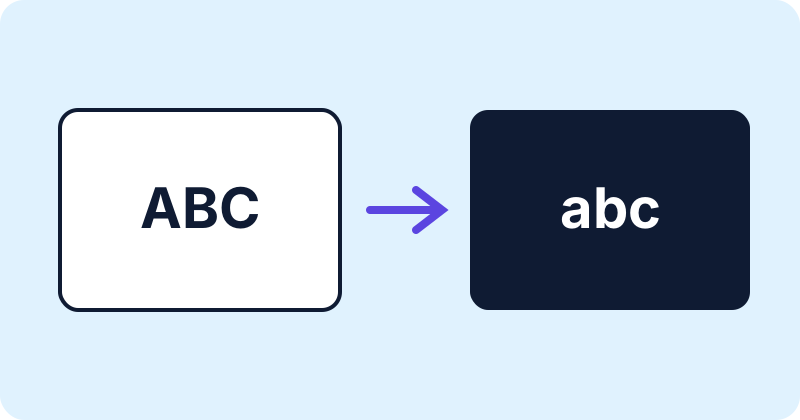
Text arrives in capitals more often than you would expect: old documents, copied form fields, shouting emails. Retyping it is a waste of time. A few clicks will fix it, and a quick review will catch what automation cannot.
Fast method: the Text Case Converter
- Paste the text into the Text Case Converter.
- Press lowercase for everything small, Sentence case for normal prose, or Title Case for headings.
- Copy the result and paste it where you need it.
Example: “hELLO world. this is TEXT” becomes “Hello world. This is text” in sentence case. “the lord of the rings” becomes “The Lord of the Rings” in title case.
In other programs
- Microsoft Word: select the text and use Change Case on the Home tab, or press Shift+F3 to cycle through options.
- Google Docs: Format, then Text, then Capitalization.
- Excel and Google Sheets: =LOWER(A1), =UPPER(A1) and =PROPER(A1) in a helper column.
Which option should you pick?
Sentence case suits paragraphs. Title case suits headings, but rules vary: some styles lowercase short words like “of” and “the”, others capitalise more. If you must follow a particular style guide, check its rule after converting.
What automation gets wrong
- Names and places. “john smith” stays lowercase after a lowercase conversion; fix it manually.
- Acronyms. “NASA” becomes “nasa”. Restore the capitals.
- The pronoun “I” becomes “i” in simple converters.
- Brand spellings such as iPhone need correcting.
Language notes
Case rules differ between languages. In Turkish, for example, the capital I and lowercase i have dotted and dotless forms, and a generic converter may not follow Turkish rules. German ß becomes SS in uppercase. Treat the output as a draft in languages other than English and proofread it.
A reliable workflow
Convert to sentence case, scan for proper nouns and acronyms, fix them, then read the text once through. Keep the original in case you need to compare.
Why all capitals is worth fixing
Long passages in capital letters are harder to scan, because words lose the distinctive outlines that lowercase letters give them, and many style guides advise against them for anything beyond a short heading. In emails and messages they can also read as shouting. Converting to sentence case usually makes text friendlier and easier to read.
A dependable workflow for restoring capitals
- Keep a copy of the original text.
- Convert everything to lowercase, or straight to sentence case.
- Make a short list of words that need capitals: names, places, acronyms, product names and the word “I”.
- Use find and replace with the match-case option on, so that, for example, “nasa” becomes “NASA” without affecting other words.
- Read through once to catch anything left, especially after colons and quotation marks.
Names that automation gets wrong
Rules that capitalise the first letter of each word will turn “McDonald” into “Mcdonald” and “O’Neil” into “O’neil”, and will capitalise particles that are normally written small, as in “van der Berg”. Spreadsheet functions such as PROPER behave the same way. These are the cases to check by hand.
Changing only how text looks
On a web page, you can display text in lowercase or uppercase with the CSS property text-transform, without changing the stored text. For example text-transform: lowercase; shows capitals as lowercase on screen. This is useful for design, but the underlying text, and what a visitor copies, stays as it was typed.
Comparing text without caring about case
If you are matching names or searching text in a spreadsheet or program, convert both sides to the same case before comparing, so that “Report” and “REPORT” match. Remember that case rules differ between languages. In Turkish, for example, the capital I pairs with a dotless lowercase letter, and a generic converter may not follow that rule.
Sentence case traps
- Text after a colon is not always a new sentence, so check whether it should start with a capital.
- Abbreviations such as “e.g.” and “Dr.” contain full stops that can fool simple rules into capitalising the next word.
- Quotations that start in the middle of a sentence keep their own capitalisation rules.
Conclusion
Automate the bulk of the change and spend your time only on the exceptions: names, acronyms and brand spellings.
Try the tools
Frequently asked questions
What shortcut changes case in Word?
Shift+F3 cycles through case options on selected text.
Will names stay capitalised?
Not after a lowercase conversion. Fix them manually.
Does title case follow one rule?
No. Style guides differ.
Is my text uploaded?
Not by the tool code. It runs in your browser.